
Support Centre · Guided tour · Step 2 of 10
2. Documents: your checklist
6 min
By the end of this step
You can send every document on the list and understand what your agent did with it.
The Documents tab is the list of what a landlord will ask for, prepared by your agent for your province. It has a section for you, one for each person you invite, and Accepted Offer for the papers that come once an offer is accepted: the deposit instructions, the deposit, the lease, the insurance and the utility accounts.
The four statuses
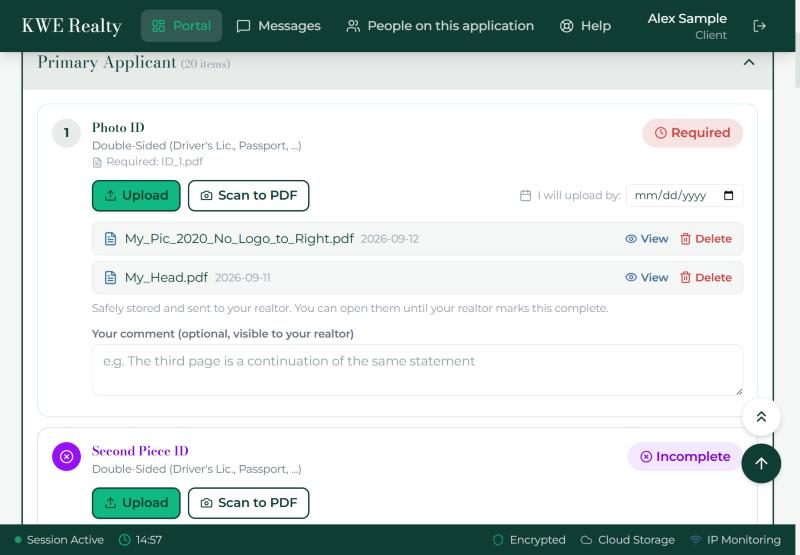
- Required: nothing sent yet.
- Pending Review: your file is in and your agent has not looked at it yet.
- Completed: your agent checked it. The file is locked: you can no longer open, replace or delete it, so ask in Messages if you need a copy. You get one email, and one text if you have them on, saying how many documents were accepted at a time, not one per file.
- Incomplete: your agent sent it back. Their note is on the row, and it reaches you by email and by text. Upload a better file and the row goes back to Pending Review.
Sending a document
- Open a section and press Upload on the row. A PDF or a photo, up to 10 MB each. You can pick several files at once, up to 10, and they go up one after another; a document with more than one page can sit on one row as several files.
- No scanner? Press Scan to PDF for the steps: the Notes app on an iPhone, Google Drive on Android, or Adobe Scan on either, then upload the PDF it makes.
- Not ready yet? Set a date under "I will upload by" so your agent knows when to expect it.
- "Your comment" under the files is a word to your agent, for example that the third page continues the same statement. They see it on the row, and it also appears in Messages, linked to that document.
- Until your agent marks a row Completed, you can open your files with View and remove them with Delete.
- The welcome at the top counts your documents and names the next one to send.
The deposit
- The first row of Accepted Offer, Deposit Instructions, comes from your agent, not from you: the page that says how, where and by when to pay the deposit. You get an email and a text the moment it is in. Open it from the row with View, and pay by the date on it.
Moving in
- Under Accepted Offer is Occupancy, for the day you get the keys: tick Keys received and Key deposit given, photograph the key receipt, and photograph anything wrong with the place before your things go in, so it is on record from the first day. Your agent can send those photos and notes to the listing side with the question of when they will be fixed. If you would rather take care of them yourself and send the landlord the invoice, tick the box under the photos; your agent may also ask you by email and text, and ticking is your answer. Nothing is offered in your name unless you ticked it or told your agent so.
People you invite
- The card at the bottom, "Have another co-applicant?", adds someone who is applying with you. They get their own section and their own login; step 8 has the details.
What your agent sees
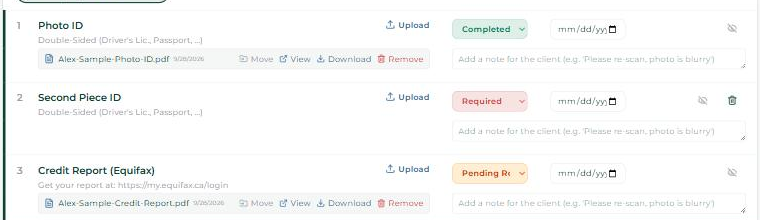
Your agent sees the same list as a table, with a status dropdown and a note box on every row. Marking a row Completed locks it for you; marking it Incomplete sends you an email and a text with their note. They can also put a file on a row for you, for a paper you handed them in person.
Still stuck? Write to support@getfoyernow.com