
Support Centre · Guided tour · Step 2 of 14
2. Setting up your account
10 min
By the end of this step
Your profile, mobile number and province are right, your clients see your brand, your personal link works, texts reach you, and your login has two steps.
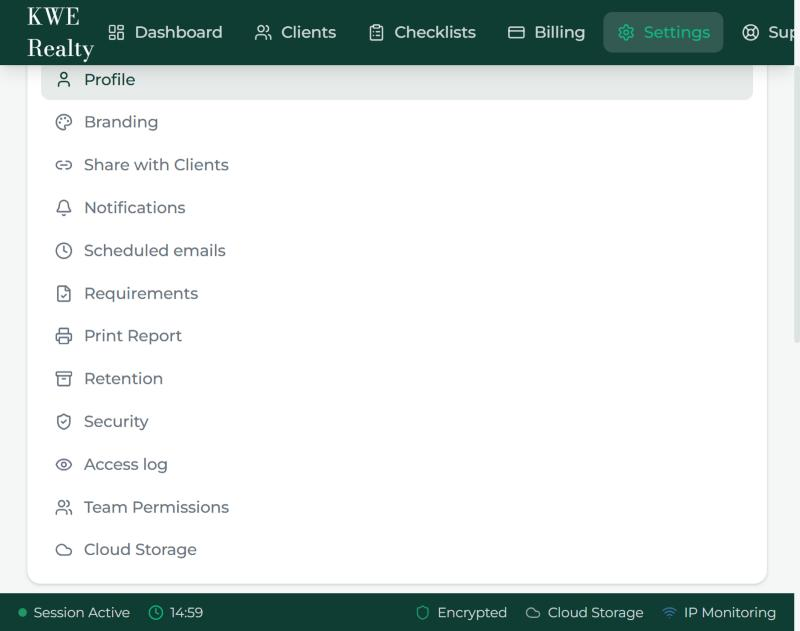
Open Settings in the top bar. A menu lists twelve sections: Profile, Branding, Share with Clients, Notifications, Scheduled emails, Requirements, Print Report, Retention, Security, Access log, Team Permissions and Cloud Storage. Pick one and its card opens under the menu, with its own Save button.
Profile
- Check your name, phone number and brokerage name. They appear on every email a client gets and on the package the landlord opens. The phone box starts with +1; type the ten digits of your mobile number, since this is the number your texts go to.
- Set your province. It decides what goes under Accepted Offer on every new rental checklist: Ontario, British Columbia and Alberta each have their own set; other provinces use the general one.
Branding
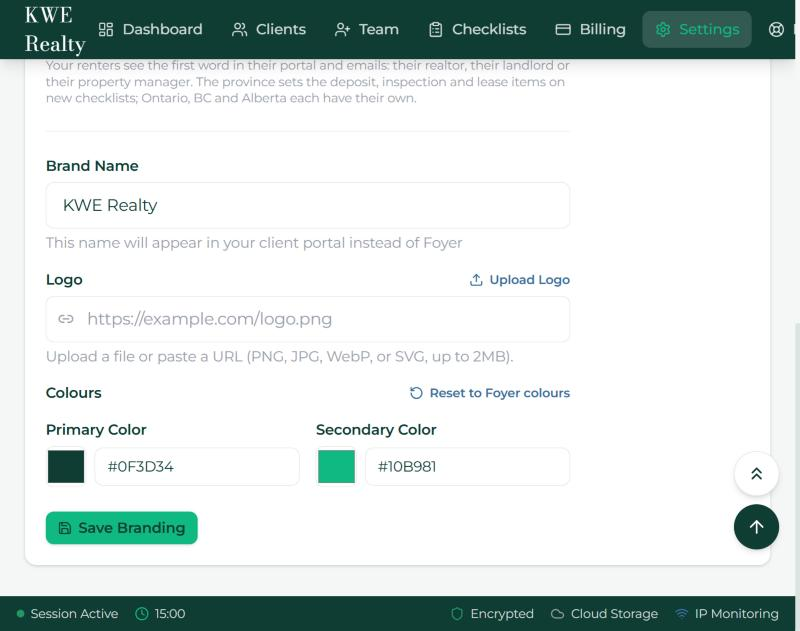
- On the Pro plan and above, upload your logo and choose your colours. Your clients’ portal, their emails and the package page take your name and look.
- Press Save. "Back to Foyer colours" undoes a colour you do not like.
Share with Clients
- Your personal link, getfoyernow.com/r/your-name, is here. Anyone who opens it sees your name, brokerage and contact details, then creates their own portal under you. No invitation needed, so it works on a business card, a listing or a text.
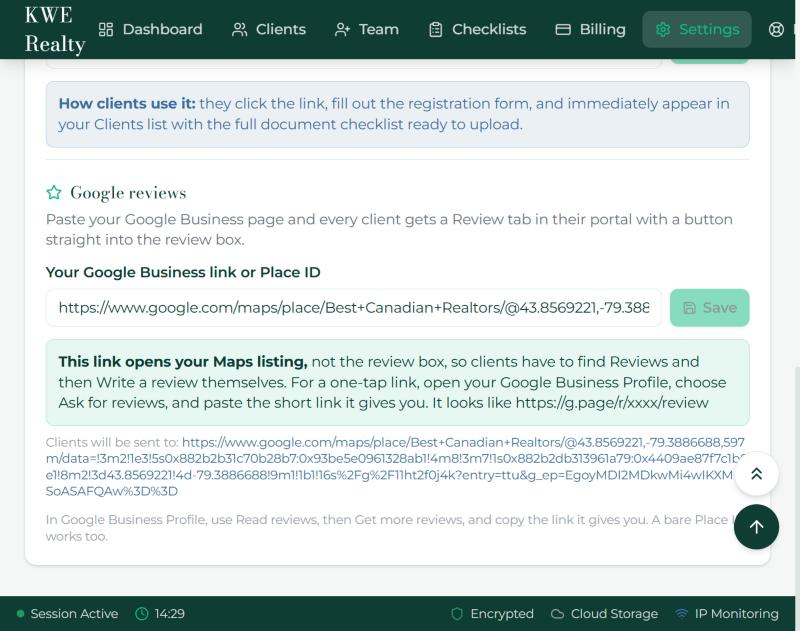
- Change the ending of the link if you like, and add your Google Business link so every client gets a Review tab at the end.
Notifications
- Choose who gets the emails about client actions: only you, the assigned agent and you, the assigned agent alone, or the whole team. Then tick the actions that send one: a document uploaded, a new client through your link, an application being worked on, an application submitted.
Text messages
- The Text messages card sits under the notification choices. Turn on Send me texts and everything Foyer emails you about your clients also arrives as a text on the mobile number from your profile: a new message, a document received, a submitted application, a reminder that is due, a new sign in, a co-broker’s answer, a renter changing a submitted application. Texts to you come from Foyer; texts to your renters carry your brand on Pro and above.
- Reply STOP to any text and they stop; the switch turns itself off. A text never contains a document, only what happened and a link into Foyer.
Scheduled emails
- Every email you send from Foyer has a Send later box beside its button: an invitation, a package link, a showing route, a team invitation, a consent request. Pick a day and a time and the email goes out then, even on a day you are off.
- Scheduled emails lists what is waiting, from wherever you wrote it, with Cancel and Send now on each line, and what went out or was cancelled in the last week.
Requirements
- Tick the application fields a client must complete before they can submit. Ticked fields show a red asterisk on their form.
Print Report
- Choose which sections appear when you print or save an application as a PDF.
Retention
- Once a client’s file is marked completed or archived, Foyer keeps the documents and application answers for the period you set, six months unless you change it, then deletes them. The assigned agent gets an email two weeks before, with a button to keep the file six months longer.
Security
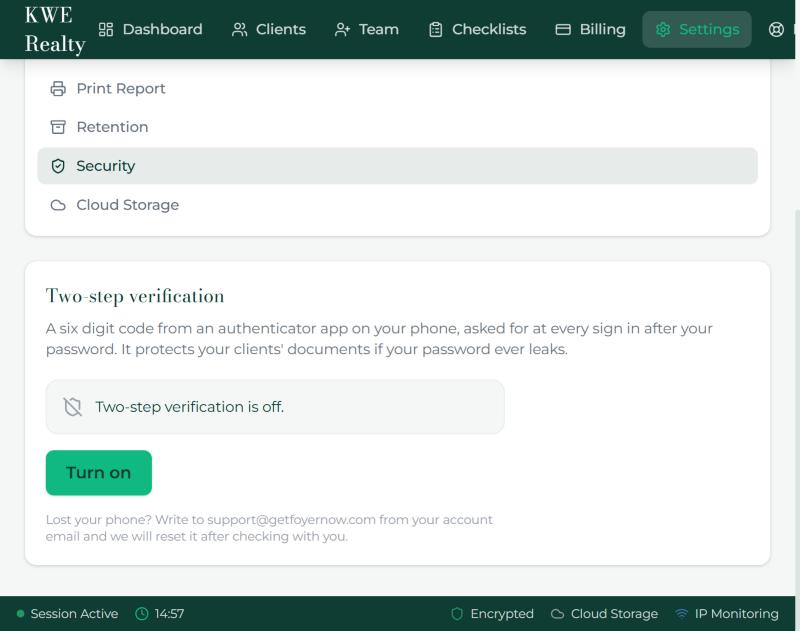
- Turn on two-step verification: scan the code with Google Authenticator, Authy or Apple Passwords, type the six digits, and keep the recovery codes somewhere safe. From then on every sign in asks for a code after the password.
Access log
- Every open of a document, the application or the letter in your files, with who and when. Step 13 goes through it, and through the Foyer support switch that lives on the same card.
Team Permissions
- Your team members and their invitations live here, with a Download documents switch on each member: whether they may use Download all on a client’s documents. Off, only the account owner can download every file at once. Step 12 has the rest.
Cloud Storage
- Connect OneDrive and every document a client uploads is copied into a private Foyer folder in your drive. Files stay encrypted in Foyer as well. Disconnecting stops new copies; what is already in your drive stays there.
Still stuck? Write to support@getfoyernow.com