
Support Centre · Guided tour · Step 4 of 14
4. Bringing a client in
6 min
By the end of this step
You can invite a client by email or link, see where the invitation stands, and keep your list in order.
Open Clients in the top bar. The list shows every client in your brokerage: the full name, how many documents are in, the progress with its percentage above the bar, the last update, the status and the document set. Press the name to open the file. Search and the status filter narrow the list, and Back brings you to the same view.
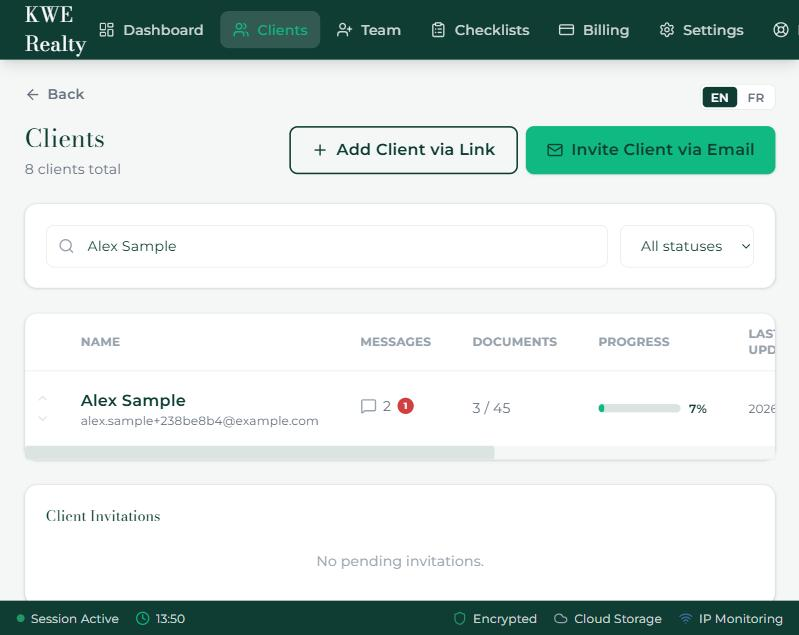
Invite Client via Email
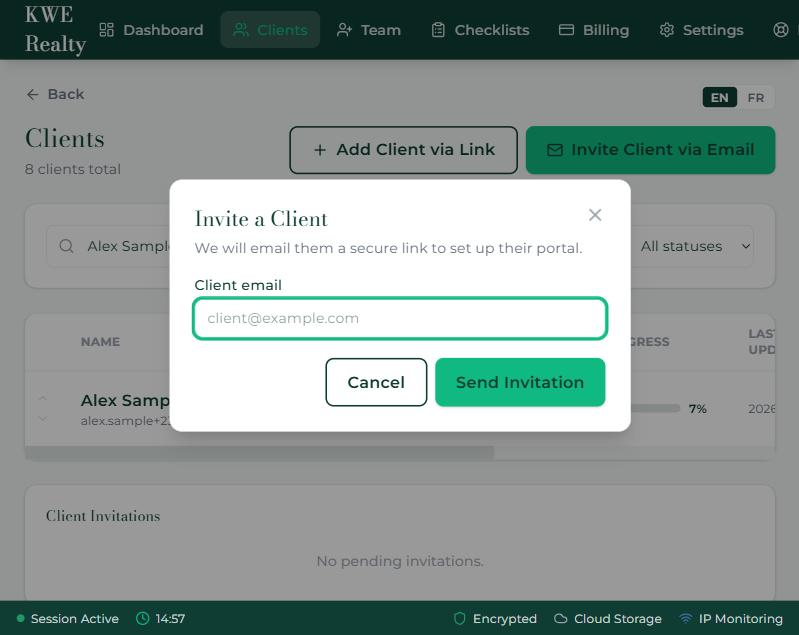
- Press Invite Client via Email and enter the client’s email. Every new client starts on the Rental Application checklist; change the document set on their page if they need Lease Renewal or Roommate / Co-Applicant.
- Press Send Invitation. The client gets an email in your name with a button to create their portal. Until they do, the invitation sits under Client Invitations, where you can copy its link, resend it or cancel it. Tick Send later first and choose a day and a time, and the email waits in Settings, Scheduled emails until then.
Add Client via Link
- This copies your personal link, getfoyernow.com/r/your-name. Text it, put it on a card or in a listing. A renter who opens it sees your name and brokerage, then creates their portal under you, with the Rental Application checklist.
Add Sample Client
- Alex Sample is a filled file to click around: three documents, a started application, a letter. Use it to learn; remove it when you have real clients. It never counts toward your plan.
Statuses and pins
- A client is Active, Completed, On Hold or Archived. Change it from the client page. Completed and Archived start the retention clock from step 2.
- Pin the clients you are working on this week to the top, and move the rest up or down. Team members see only the clients assigned or shared to them.
What the renter sees
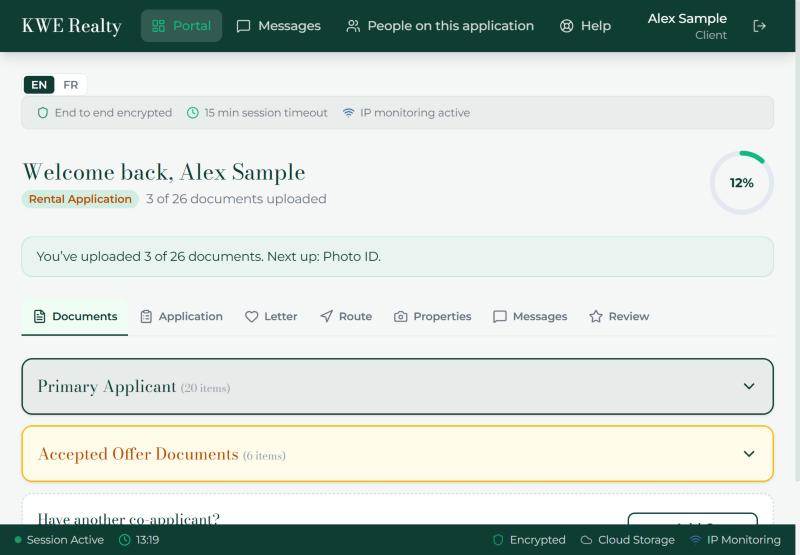
The invitation email, or your personal link, lands them on a page with your name and brokerage. They create a password and arrive on their portal: a welcome with their name, a progress ring, and tabs for Documents, Application, Letter, Route, Properties, Messages and Review. Their checklist is already there, with every item from your province’s list.
Still stuck? Write to support@getfoyernow.com