
Support Centre · Guided tour · Step 5 of 14
5. The client page
4 min
By the end of this step
You know what every card and tab on a client’s page is for.
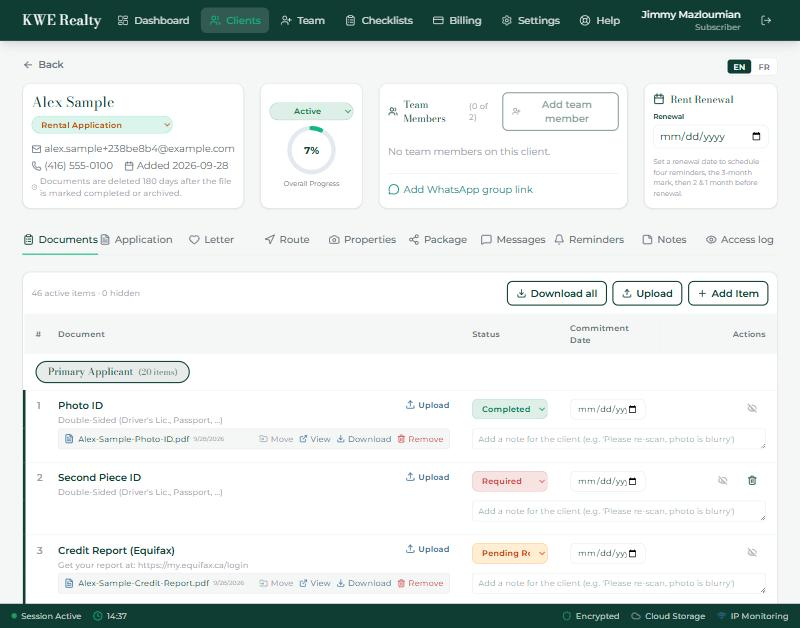
Click a client’s name on the Clients page. Everything about that one file is here.
The header
- The first card has their name, document set, email, phone and the date added, with the retention line under it. Their status is the dropdown on the second card, beside the progress ring.
- Team Members shows who else on your team works this file, with Add team member. Under it, Add WhatsApp group link keeps the group you already have with this client one tap away.
- Rent Renewal takes a date and schedules four reminders: at the three-month mark, then two months and one month before.
- The progress, team and renewal cards show with the Documents tab only; the other tabs keep the room for their own work.
The tabs
- Documents: the checklist, the files, and your review. Step 6.
- Rental Application: what they have filled in, and the PDF. Step 7.
- Sweetheart Letter: their answers and the letter to the landlord. Step 8.
- Showing Route and Properties Seen: the day’s viewings and the places they kept. Step 9.
- Share Package: the five packages for the leasing agent. Step 10.
- Messages, Reminders and Notes: the conversation, your follow-ups, and notes only your team sees. Step 11.
On a narrow screen the tabs show as icons; the full name appears when you hover or hold.
Still stuck? Write to support@getfoyernow.com