
Support Centre · Guided tour · Step 7 of 10
7. Messages
3 min
By the end of this step
You can reach your agent inside the portal, where the message sits next to the file it is about.
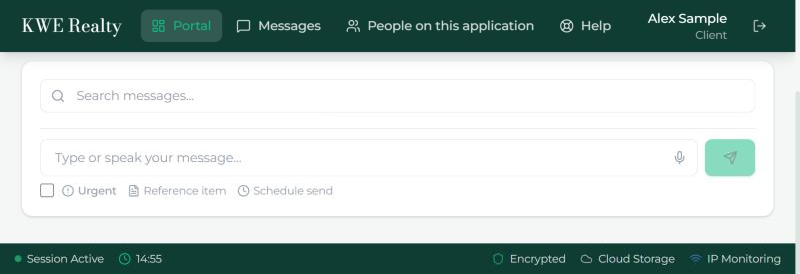
Messages is one thread between you and your agent, kept with your file. It is in the top bar and in the tab bar, so it is one tap from any page.
- Type in the box at the bottom, or press the microphone and speak; your words appear in the box for you to check before sending. The microphone works in the app and in most browsers.
- Your agent gets an email, and a text if they have them on, for every message you send; tick Urgent and the email says so. Their messages reach you the same way.
- Reference item attaches a checklist document to the message, so "is this the right one?" points at the file. In the thread the document’s name is a link; press it and the Documents tab opens on that row.
- Schedule send holds the message until the time you choose; your agent is emailed and texted at that time, not when you wrote it.
- The search box at the top finds any earlier message. Under each one you see when it was sent and when it was seen.
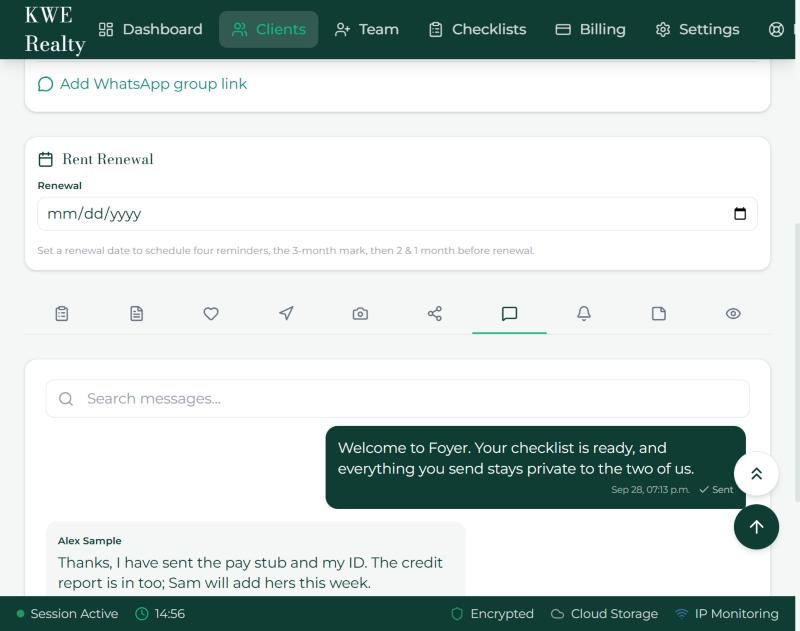
What your agent sees
Your agent reads and answers on the Messages tab of your file. A note they leave on a document row also lands here, so the thread holds everything said about your file.
Still stuck? Write to support@getfoyernow.com