
Support Centre · Guided tour · Step 12 of 14
12. Your team
4 min
By the end of this step
You can bring a colleague in, give them the right clients, and take them off when they leave.
Open Settings in the top bar and press Team Permissions. Your plan sets the number of seats; the page says how many are used.
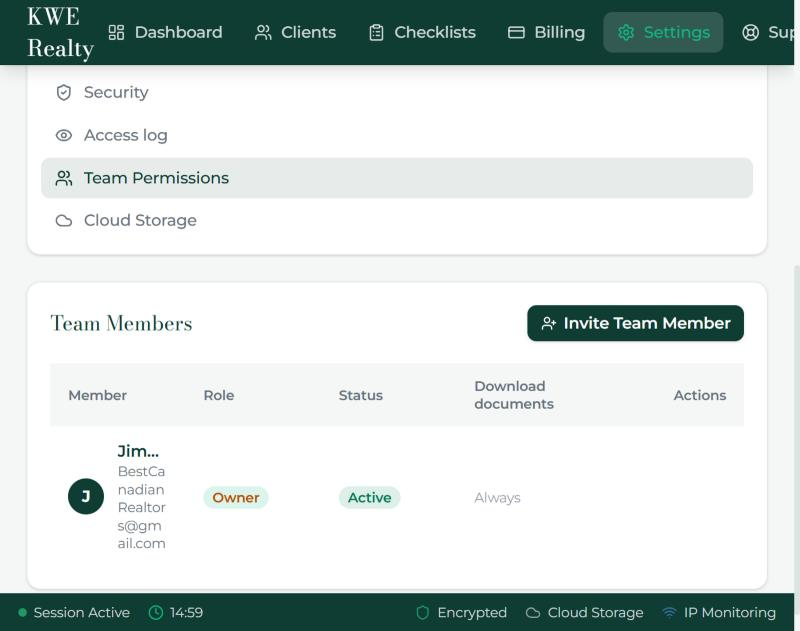
- Invite Team Member takes an email address and sends an invitation, now or at the time you pick under Send later. Until it is accepted it sits in the list, where you can copy its link, resend or cancel it.
- A team member sees only the clients assigned to them, or shared with them. Assign a client from the Team Members card on the client page. A client can also be shared across brokerages as a co-broker, with the other agent’s consent; the request can be sent later, and their answer, accepted or declined, reaches you by email and by text.
- Deactivate member closes their access at once and frees the seat. Do this the day someone leaves.
- Team members cannot download every client document at once unless their switch in Settings, Team Permissions is on. They cannot change billing, branding or templates; those are yours.
Still stuck? Write to support@getfoyernow.com